Icon
Application

Directory – Click this icon to open the Directory database where you can maintain information about people in the system.

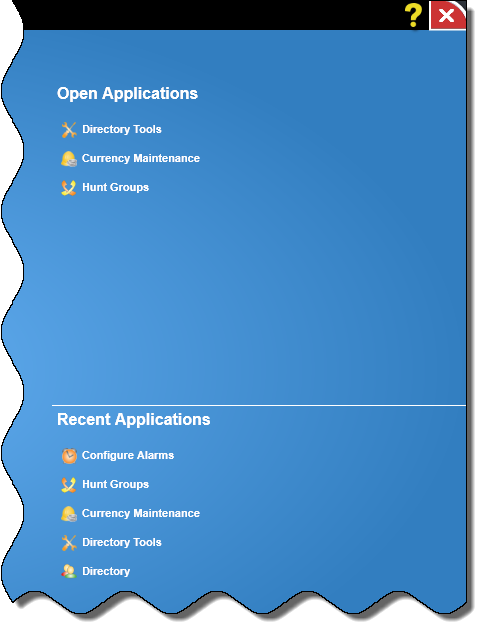
Directory Tools – Click this icon to open Directory Tools. Directory Tools contains a set of applications that lets a Directory Administrator maintain and setup items used by the Directory database.

Call Routing and Rating – Click this icon to open Call Routing and Rating where you can gain access to Extension Locations, Billing Descriptions, Facilities, Phone Number Translations, and Pooled Billing.

System Setup – Click this icon to enter basic configuration information for the system. Much of this information is entered when the system is installed and only has to be accessed when changes occur.
Note: Currently, most of the configuration information is accessible only through the Client/Server version of the call reporting system.

Configure Alarms – Click this icon to open Alarms where you can create alarms to alert you to of unusual conditions in your telephone system.

Price-A-Call – Click this icon to open Price-A-Call where you can calculate the cost of a placed call or to check the estimated cost of a call before you make it.

Carrier Call Matching – Click this icon to open Carrier Call Matching where you can compare carrier bills to actual call traffic data in data sources and their facilities.

Currency Maintenance – Click this icon to open Currency Maintenance where you can set a common currency and manage conversion rates.

Hunt Groups – Click this icon to open the Hunt Groups database. The Hunt Groups database contains the hunt group numbers and names for your organization.

Phone Number ID Database – Click this icon to create Phone Number ID Database. The Phone Number ID database allows you to assign a name to an individual phone number or dialed digits pattern for both inbound and outbound calls. This database has multiple applications. Often the caller ID number is passed through the CDR, but without the caller ID name. Using this database, you can assign a name to that number. The custom name will appear in the Location field in a detailed report for calls to and from that number.