Directory Tree
In the right-hand side of the Directory screen, your organization hierarchy
displays in a tree format. Each branch of the tree represents an organization
level. For example, you may have defined the highest level as a "Company,"
the next highest level as a "Division," the next level as a
"Cost Center," the next as a "Department," and the
final level will always be the system-defined Person. The top level, Organization,
is also system-defined and cannot be changed.
Note: For the purposes
of this Help file, the terms Company, Division, Cost Center, and Department
will be used for the non-system-defined organization levels.
Directory Tree Overview
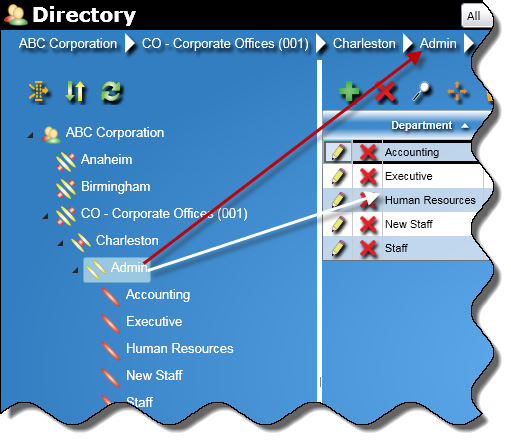 |
Above the directory tree and
below the title bar, links appear as you move through the tree.
These links serve two purposes:
Below the links is a directory tree tool bar containing a set
of three icons. These icons let you perform the following:
Please see below for more information on directory
tree tool bar.
Below the directory tree tool bar is the directory tree containing
your organization hierarchy. Each level is represented by a symbol.
When a level is selected, the elements within that level display
in the right-hand side of the Directory screen (white arrow).
Please see below for an explanation of the organization
level symbols. |
Directory Tree Tool Bar
The directory tree tool bar contains a set of three icons. The following
describes how to work with each of them.
 |
Clicking
the Filter icon lets you choose whether or not to display all
extensions, active extensions, or inactive extensions for a specific
home site or all home sites. When clicked, a Filter Tree dialog
box will appear. After selecting the filter options at this dialog
box, the Filter icon will be white and when hovered over, will
.
 Click for more information
on the Filter Tree dialog box. Click for more information
on the Filter Tree dialog box.
|
 |
Clicking
the Sort icon lets you choose how to sort the directory tree.
It can be sorted by organization name or organization code. The
default is by organization name. Click on the Sort icon to toggle
between sorting by name or code. When you hover over the Sort
icon, the current setting will display.
Note: Changing
how the directory tree is sorted will effect only how the current
user will see the directory tree. |
 |
Clicking the Refresh icon will
let you see changes made by another user in the Directory database.
For example, if someone changes a name of an organization level,
click the Refresh icon and the change will be reflected in directory
tree. |
Organization Level
Symbols
Each organization level is represented by a symbol. By clicking on the
arrow next to the symbol at each level, the tree structure expands to
reveal lower levels, or collapses to conceal those lower levels.
 |
The top-most level, Organization,
is represented by this symbol. It is system-defined and cannot
be changed. |
 |
The level immediately below Organization
is represented by this symbol. |
 |
The next level is represented by
this symbol. |
 |
The second lowest level is represented
by this symbol. |
 |
The lowest
organization level in the directory tree is represented by this symbol.
When you click on this symbol, the people contained within that
level will appear in the right pane of the Directory screen.
A Person could be an extension, or, for example, could represent
a phone in a break room or conference room. In addition, it could
also stand for a modem or fax line. |
