Welcome to Import Account Codes
Note: Account and Matter are the default names the system uses for the primary and secondary account codes. When you installed the system, you specified your own names for these codes, such as Customer/Project, Client/Case, or others. For this Help file, Account is used for the primary code and Matter is used for the secondary code.
In this Topic ShowHide
After clicking the Import Account Codes icon on the PSP Functions menu, the Import Account Codes menu screen appears. At the top of the screen is a New Import button. After clicking this button, a tabbed screen appears. This screen contains, depending on the configuration of the import file, four or five tabs that let you configure an import.
Left-Hand Side of the Import Account Codes Menu Screen
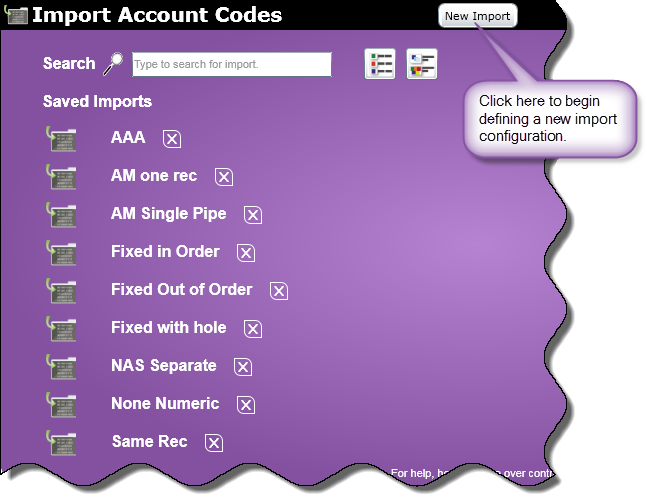 |
The left-hand side of the Import Account Codes menu displays:
-
Names of previously created imports
-
A Search text box where you can search for an import
-
Buttons that let you display either full descriptions of the import configurations or just their names
See below for more information on searching for an import and displaying an import's full description.
|
Searching for an Import Configuration
When specifying search criteria for an import, you are searching on the import name or keywords related to the import that were specified when it was saved.
To search for an import, follow these steps:
-
In the Search text box, enter your search criteria.
-
As you type, the list of imports will shorten depending on your search criteria.
-
Select the desired import configuration from the Saved Imports section.
Title/Detail View Buttons
Next to the Search text box are two buttons that, when clicked, will either display or hide details of the imports.
 |
When you click this button, just the titles of the imports are displayed.
|
 |
When you click this button, the titles as well as a detailed description of the imports are displayed. The details displayed were specified when the configuration was saved at the Save Configuration Settings screen.
|
Saved Imports Section
This section of the Import Account Codes menu displays saved imports in alphabetical order.
Editing an Import Configuration
To load a previously saved configuration specification, perform the following:
-
Search for the configuration using the steps provided above.
-
Select the configuration from the Saved Imports section.
-
Select the configuration, and the tabbed Import Account Codes Editor screen will appear with the previously saved settings.
-
After editing the configuration, the  Unsaved Data icon will appear in the upper right hand corner of the screen. Click the Save button to save your changes and the Unsaved Data icon will disappear.
Deleting an Import Configuration
Right-Hand Side of the Import Account Codes Menu Screen
|
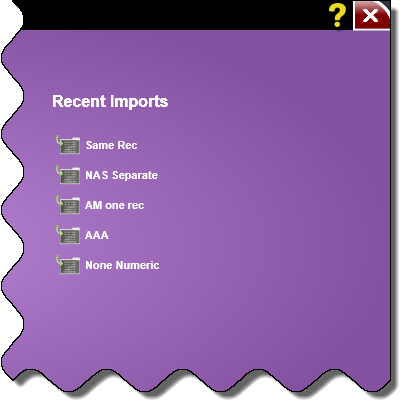
The right-hand side of the Import Account Codes menu screen contains the Recent Applications section. This section displays the last 5 imports created or accessed by the current user.
|
 |

 . When clicked, a Confirmation screen will appear asking if you want to delete the import.